How Facial Recognition Works in MyFaceGuard: You Stay in Control
Many photos are taken at events, conferences, and daily work. With so many pictures, it is hard for people to track where they appear and hard for organizations to know which photos they can use.
MyFaceGuard helps solve this challenge. Facial recognition technology itself does not decide if an organization can publish your photo. It is only designed to help you find photos where you might be present faster. The final decision to confirm the match and allow photo use always stays in your hands.
Facial recognition is optional (use the system without biometrics)
You do not need to activate facial recognition to use MyFaceGuard and manage photo permissions. The system works fully without using biometric data.
How does it work without biometrics?
If you do not want to create a facial biometric profile, an organization can send a request directly to your email address. Once you log into your account, you can manually view the attached photos, review the details, and make your decision.
What does facial recognition offer?
It is an optional feature that speeds up search so you do not have to look through hundreds of album photos manually.
Two separate and independent decisions
MyFaceGuard strictly separates two different choices:
Do you want to use facial recognition technology to find yourself in photos?
Do you allow the organization to use the found photo in the specified channels?
Enabling facial recognition does not mean automatic consent to publish all found photos.
Step-by-step user journey
Here is how the process works from start to finish:
1. You choose if you want to find yourself faster
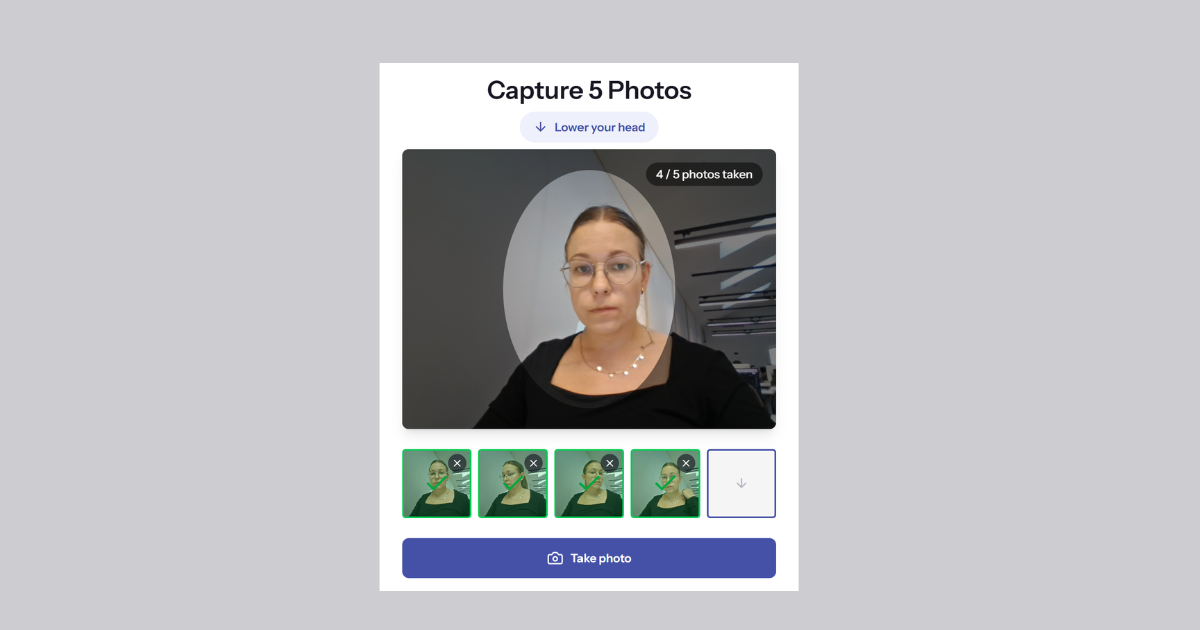
When signing up or in your profile settings, you can create a facial biometric profile by taking a photo with your camera. You can skip this if you do not want it. When enabled, it helps you find your photos faster.
2. You control access and who can recognize you
You decide which organizations can use your biometric profile for searches:
Global setting: Allow or block facial recognition search by default for all organizations.
Organization-level setting: Control permission for each organization separately. For example, allow recognition for your employer, but block it for a sports club or event organizer.
(If recognition is turned off for a specific organization, they can still send requests manually to your email.)
3. The system finds possible matches
When an organization uploads event photos, MyFaceGuard compares faces in the photos with your profile (only if you allowed that organization). The result is only a possible match, not a final decision.
4. What happens in case of an incorrect match? (You check the result)
AI can make mistakes — like confusing you with a similar-looking person or missing you in poor lighting. That is why you make the final call. The system shows you the photo and gives two options:
“This is me” – You confirm that you are in the photo.
“This is not me” – If it is a mistake, you mark that it is not you. The wrong match is rejected, and the final say is always yours.
5. You decide on photo usage
After confirming your identity, you decide on the use of each photo separately. You can select:
“Allow usage” (in all or specific channels);
“Do not allow usage”.
What can you change later?
Your choices are never permanent:
You can change permission for any organization at any time.
You can delete or recreate your biometric profile whenever you want.
You can review and change past decisions on specific photo uses. Turning off or deleting biometrics does not change or cancel your previous decisions about photo permissions.
Faster search without losing control
Facial recognition in MyFaceGuard saves time without giving up your privacy. Technology does the heavy lifting of finding matches, but you make all the key choices and final decisions.
Check your settings and learn more about MyFaceGuard for individuals.